A Chrome bookmark organizer is an extension that sorts, cleans or files your Chrome bookmarks for you, because Chrome’s own Bookmark Manager only sorts one folder by name at a time. Which one to install comes down to whether you want Chrome’s folders rewritten, or Chrome left alone and a searchable copy organized for you.
The choice gets bigger with the list. A few dozen bookmarks sort by hand in a lunch break. A few thousand, spread across the bookmarks bar, Other bookmarks and folders you made years ago, is a different job, and the organizers split along what they do to the originals.
- To group a big pile by topic and find things again: ContextBolt imports your Chrome bookmarks, groups them into topics and searches their titles, sites, tags and folder names. Chrome’s own list is left as it is, and Basic is free up to 150 bookmarks.
- To delete duplicates, dead links and empty folders: Bookmarks clean up does all three for free. What it deletes cannot be restored, so export first.
- To have AI file new bookmarks into Chrome folders: Neat AI Bookmark Manager does it free as you save. Sorting your old ones in bulk is a paid Pro feature.
- To put every folder in A to Z order at once: SuperSorter, free, with no undo and no update since April 2023.
- Chrome on its own sorts one folder by name at a time and has no duplicate finder.
Chrome bookmark organizers compared
Every extension here reads your Chrome bookmarks. The column that decides most choices is the third: what happens to Chrome’s own list when the extension runs.
| Extension | What it does | Chrome’s own list | Price | Last store update |
|---|---|---|---|---|
| ContextBolt | Imports them, groups them into topics, searches them | Left as it is | Free up to 150, Pro $6/mo | Nov 9, 2026 |
| Raindrop.io | Imports an export file into collections | Left as it is | Free, Pro $3/mo | Sep 3, 2026 |
| Bookmarks clean up | Deletes duplicates, dead links, empty folders | Deleted, no restore | Free | Sep 30, 2026 |
| Neat AI Bookmark Manager | AI files bookmarks into folders | Moved into folders | Free, Pro for bulk sort | Nov 17, 2026 |
| Bookmark Sidebar | A sidebar to browse, sort and drag folders | Changed as you edit | Free | Oct 30, 2026 |
| SuperSorter | A to Z in every folder, deletes duplicates | Rewritten, no undo | Free | Apr 5, 2023 |
| Bookmarks Organizer | Keeps the bookmarks bar in A to Z order | Bar reordered | Free | Feb 12, 2026 |
Update dates, user counts and ratings below are from each extension’s Chrome Web Store page on November 18, 2026. Raindrop’s price is its US price from Raindrop’s own checkout the same day.
The 7 best Chrome bookmark organizer extensions
We read each listing and each paid plan at the maker’s own site on November 18, 2026. We did not install all seven, so export your bookmarks before you point any of them at the whole list. Bookmark Genie ranks for this search too. We left it out because it needs your own Groq API key, and its listing showed 1.8 out of 5 from 11 ratings that day.
1. ContextBolt
Best for finding things in a big libraryContextBolt is ours, so weigh the bias.
ContextBolt is a Chrome extension that keeps web pages and your X, Reddit and LinkedIn saves in one library, and since version 0.1.45 it imports Chrome bookmarks. Open its dashboard, go to the Web tab, click Import Chrome bookmarks and allow access when Chrome asks. Each bookmark arrives with its title, address, folder name and the date you saved it, gets a few tags, and lands in a topic such as Travel or Cooking. Topics work like folders you never have to file into.
Chrome’s bookmarks stay where they were. ContextBolt never moves, renames or deletes one, and new bookmarks you add in Chrome save to it on their own while it stays connected. For a library you spent years building, there is nothing to undo.
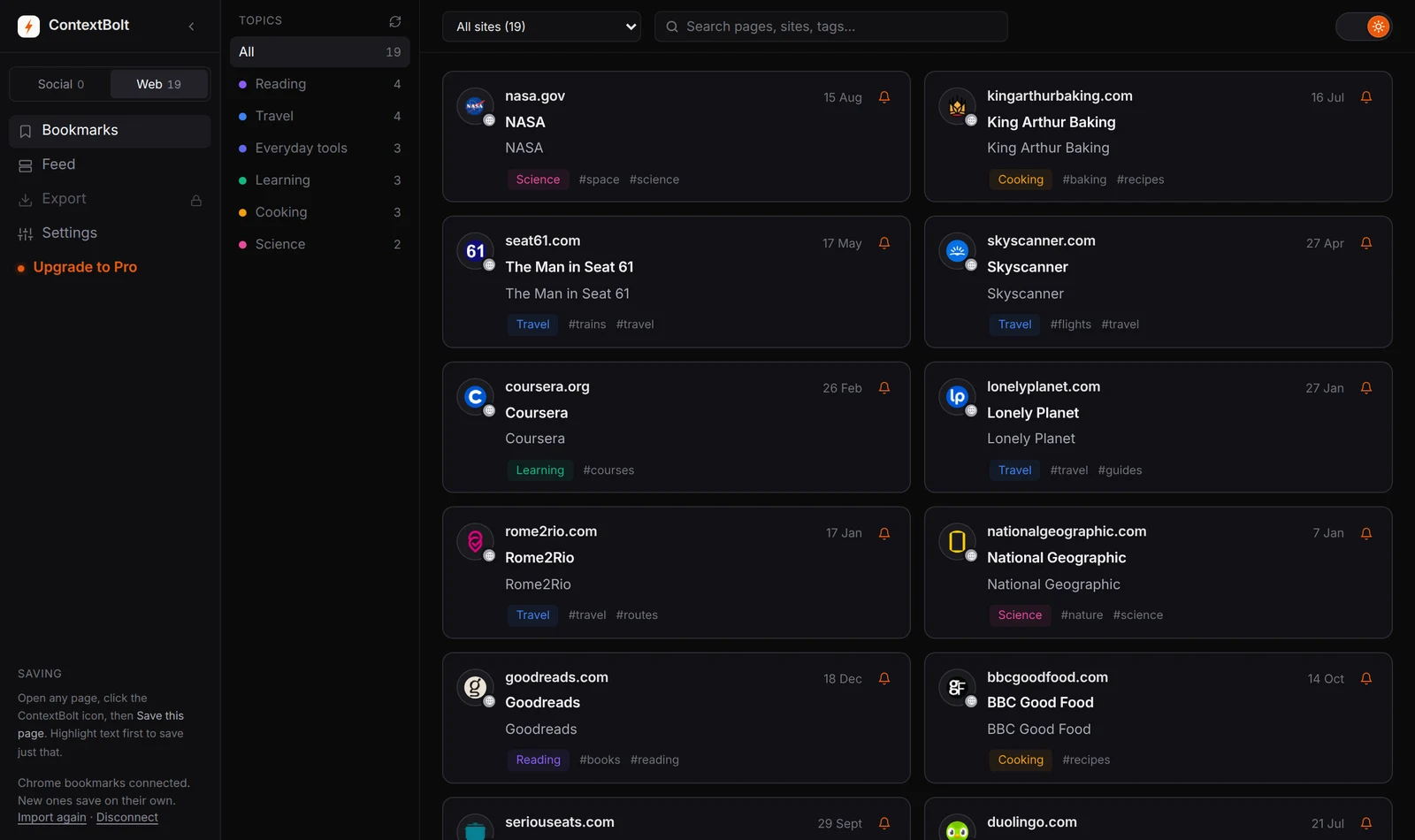
Chrome bookmarks imported into ContextBolt and grouped by topic. New Chrome bookmarks save here on their own.
A good first task: type the name of an old folder into the Web tab’s search box. Folder names are searchable, so a folder you made years ago and forgot comes back as a list.
Best for: anyone with hundreds or thousands of Chrome bookmarks who wants them grouped and searchable without risking the originals, and anyone who also saves from X, Reddit and LinkedIn.
Pricing: Basic is free and capped at 150 bookmarks. Imported bookmarks keep Chrome’s dates, so past 150 the older ones stay hidden until you upgrade. Pro is $6 a month, removes the cap, and adds cloud sync and an MCP endpoint so Claude can search your library.
Verdict: the organizer to start with when the goal is finding things again. Import your Chrome bookmarks into ContextBolt and Basic costs nothing.
ContextBolt Pro is AMAZING! I use it to scrape all my bookmarks that my ADHD brain has saved throughout time.
Rudy, ContextBolt Pro user
ContextBolt vs Raindrop.io for Chrome bookmarks
| ContextBolt | Raindrop.io | |
|---|---|---|
| Getting them in | Import from the Web tab, and new ones follow | Export a file from Chrome, then upload it |
| Getting organized | AI topics and tags, nothing to file | Your old folders become collections |
| X, Reddit and LinkedIn saves | Captured as you save them | Each link by hand, or IFTTT applets |
| Free plan | Free up to 150 bookmarks | Unlimited bookmarks |
| On your phone | Desktop Chrome extension | iOS and Android apps |
What you gain is a library that sorts itself and keeps taking new Chrome bookmarks. What you give up is Raindrop’s unlimited free plan and its phone apps.
Head to head ContextBolt vs Raindrop.io Search, social capture, MCP and price side by side, and the jobs where Raindrop's collections and apps still win. Read the comparison2. Raindrop.io
Best for a visual library on every deviceRaindrop.io is the bookmark manager many people already know, with 400,000 users on its Chrome extension. To bring Chrome bookmarks in, you export them from Chrome as an HTML file and upload it on Raindrop’s Import page. Your folders become collections, and duplicate addresses are skipped on the way in, according to Raindrop’s import guide.
The cleanup tools are on Pro: a duplicate and broken links finder, plus AI Suggestions and full-text search. The free plan holds unlimited bookmarks and collections, with apps for iOS and Android.
Pricing: free, or Pro at $3 a month or $28 a year (US prices from Raindrop’s checkout, November 18, 2026).
Verdict: the pick if you want covers, collections and phone apps and are happy to keep filing by hand. Your collections arrive shaped like the folders you exported, and the saves you make on X, Reddit and LinkedIn stay outside it unless you add each link yourself.
3. Bookmarks clean up
Best for deleting duplicates and dead linksBookmarks clean up finds duplicate bookmarks, empty folders and links that no longer load, merges folders with the same name in the same place, and deletes what you select. It has 200,000 users and a 4.2 rating from 684 ratings. Its changelog notes the move to Manifest V3, the extension format Chrome supports today, and the listing was last updated September 30, 2026.
It asks to read and change your bookmarks when you install it. The broken link checker asks for access to websites only when you run it, because it has to load each page. Its own listing warns, “there is no way to restore removed bookmarks.”
Pricing: free. The developer takes donations on Patreon.
Verdict: run it first to prune Chrome’s own list. It stops at deleting: what is left is still in your old folders, with no topics and no better search. If you would rather install nothing, our guide to removing duplicate bookmarks in Chrome lists every repeat from one export file.
4. Neat AI Bookmark Manager
Best for AI folders inside ChromeNeat AI Bookmark Manager files each new bookmark as you save it. Press Ctrl+D or click the star, and it reads the page title, address and context and moves the bookmark into a Chrome folder. That part is free. Its 1-Click Bulk Sort, which reorganizes the bookmarks you already have, is a Pro feature, and its site says it makes a local backup before it sorts.
It is new and small: 637 users and a 4.4 rating from 34 ratings, updated November 17, 2026. Neither its site nor its store page listed a Pro price on November 18.
Pricing: free for new bookmarks, Pro for the bulk sort.
Verdict: the pick if you want Chrome’s own folder tree kept and filled in for you. Each bookmark lands in one folder, so a page that fits two subjects sits under one of them, where ContextBolt’s tags let a search find it under either.
5. Bookmark Sidebar
Best for browsing Chrome’s folders fasterBookmark Sidebar puts Chrome’s bookmarks in a sidebar that slides in from the edge of the window or stays open in Chrome’s side panel. You can search, sort, drag and drop, pin favorites and hide the ones you never open, and each change is made to Chrome’s real bookmarks. Version 3.0.0 shipped October 30, 2026, and it has 300,000 users and a 4.2 rating from 1,700 ratings.
Pricing: free.
Verdict: right for folders that already make sense and that you want one click away. It shows the folders you made and leaves the sorting into them to you.
6. SuperSorter
Best for A to Z in every folder at onceSuperSorter sorts every bookmark in every folder alphabetically, can put folders at the top, deletes empty folders and duplicate bookmarks, merges folders with the same name, and can re-sort every few minutes. It has 70,000 users and a 3.2 rating from 1,300 ratings.
Its store page warns, “There is no undo function,” and shows a last update of April 5, 2023. Export first, and expect no fix if a Chrome update breaks it.
Pricing: free.
Verdict: a one-off alphabetical reset for a large tree, run once, with a backup beside it.
7. Bookmarks Organizer
Best for an alphabetical bookmarks barBookmarks Organizer was the top Google result for “chrome bookmark organizer” on November 18, 2026. It watches the bookmarks bar and keeps it in A to Z order by title as you add or move bookmarks, with a button to reorder everything once after you install it. Only the bookmarks bar is sorted, so anything you want in your own order goes in Other bookmarks.
Its listing names one limit: Chrome caps how many bookmark moves an extension can make in a short time, so a long bar may take more than one session to sort. It has 4,000 users and a 3.3 rating from 61 ratings, updated February 12, 2026.
Pricing: free.
Verdict: small and single-minded. It tidies the bar you see every day and leaves your folders alone.
Can Chrome organize bookmarks on its own?
Partly. In Chrome 157 the Bookmark Manager (Ctrl+Shift+O) has a page menu with six items: Sort by name, Add new bookmark, Add new folder, Import bookmarks, Export bookmarks and Help center. Sort by name puts one folder in order, folders first and then bookmarks A to Z, and leaves its subfolders as they were.
The bookmarks side panel offers sorts too (newest, oldest, last opened, A to Z and Z to A), but those change how the panel lists bookmarks, not the saved order. Google’s help page lists both without saying which one sticks.
There is no duplicate finder, no dead link check and nothing that groups bookmarks by topic. For a short list that is enough, and our guide to organizing Chrome bookmarks by hand walks through folders and Sort by name step by step. Past a few hundred bookmarks, it is a lot of dragging.
Back up your bookmarks before an organizer runs
Bookmarks clean up and SuperSorter both say on their store pages that what they remove cannot be brought back. The backup takes two minutes.
- Press Ctrl+Shift+O (Cmd+Option+B on a Mac) to open the Bookmark Manager.
- Click the three dots at the top right of the page, below Chrome’s own menu.
- Choose Export bookmarks and save the HTML file somewhere you will find it again.
- Run the organizer.
- If it removed too much, open Chrome’s three-dot menu, then Bookmarks and lists, then Import bookmarks and settings, and choose the file. On a profile that already has bookmarks, Chrome puts the import in a new folder rather than merging it.
The full export guide covers bookmarks on your phone and what the HTML file leaves out. ContextBolt needs no backup step, because its import copies your bookmarks and leaves Chrome’s untouched.
Which Chrome bookmark organizer should you use?
Pick by the job:
- You want to find a bookmark by what it was about, years later: ContextBolt.
- Your list is full of repeats and dead links: Bookmarks clean up, after an export.
- You want new bookmarks filed into Chrome folders for you: Neat AI Bookmark Manager.
- You want every folder alphabetical once: SuperSorter, after an export.
- You want the bar alphabetical and nothing else: Bookmarks Organizer.
ContextBolt is for getting things back out, and it works on a copy, so it runs beside any of the others. The other four tidy the list Chrome shows you. To try it on your own bookmarks, install ContextBolt, open its dashboard, go to the Web tab and click Import Chrome bookmarks. Then search the name of a folder you have not opened in a year.