A read later Chrome extension does one small job. You find an article you do not have time for, you click a button, and it waits for you somewhere better than an open tab. ContextBolt, Instapaper, Raindrop and Chrome’s own reading list all do that much.
Where they split is what you get back. Say you saved a long post on cold email subject lines in March. In June you need it for a campaign, and all you remember is that it had a table of open rates. Chrome’s reading list gives you a scrolling list of titles. Instapaper gives you the article, if you can find it. A tool that kept the text and can search it gives you the post on the first try.
So this list ranks six read later Chrome extensions on that question, with every price read at the source on October 25, 2026. Skip to the comparison table for the one-screen view.
- ContextBolt is the best read later extension if you save pages to use later. It keeps the article text, tags it by topic, finds it from a half-remembered word, and opens it in ContextBolt Reader. Basic is free up to 150 bookmarks.
- Chrome’s reading list is free and already installed, but it keeps a link and a title, with no search and no export.
- Instapaper is the calm reading app, with unlimited free saves and a phone app. Search across your articles is a $5.99 Premium feature.
- Raindrop and Readwise Reader are bigger libraries. Raindrop is $3 a month for Pro. Reader is $8.99 a month after a 30-day trial.
- Pocket is gone. It shut down in July 2025, so its extension is not on this list.
What a read later extension should do
Most read later saves are not read later. They are needed later. You save the pricing teardown because you will price something one day, and the day comes six months on. So we judged each extension on four things.
- What it keeps: a link, a clean copy of the article, or the text you can search. A link breaks when the page moves. Pew Research found that 38% of web pages that existed in 2013 were gone ten years later.
- How you find it again: scrolling a list, searching titles, or searching the words inside the article.
- What reading it is like: a clean view without the ads and pop-ups, or the original page.
- What it costs: whether the free plan is usable, and what the paid plan actually adds.
We left out Pocket, which shut down in July 2025, and tools that save pages as files or screenshots. Those are a different job, and our list of Chrome extensions to save web pages covers them.
Read later Chrome extensions compared
| Extension | What it keeps | Finding it again | Free plan | Paid |
|---|---|---|---|---|
| ContextBolt | Article text, opens in ContextBolt Reader | Ranked search over text and AI tags | Free up to 150 bookmarks | $6/mo Pro |
| Chrome Reading List | Link, title, read flag | Scroll the side panel | Built in | Free |
| Instapaper | Clean article copy | Full-text search on Premium | Unlimited saves | $5.99/mo |
| Raindrop.io | Link, permanent copy on Pro | Full-text search on Pro | Unlimited bookmarks | $3/mo |
| Readwise Reader | Full document plus highlights | Full-text search | 30-day trial | $8.99/mo |
| ReadLater | Link and title | Its own list | Free to install | Free |
Prices are monthly billing in USD, read on each company’s own pricing page on October 25, 2026.
The 6 best read later Chrome extensions
Each write-up covers what the extension does today, what you get when you come back, and who it is for. Before you commit, save five real articles into your shortlist and try to find one a week later.
1. ContextBolt
Best for finding it when you need itContextBolt is ours, so weigh the bias. Here is what it does and where it fits.
ContextBolt is a Chrome extension that keeps what you save, not just where it was. Click the toolbar icon, then Save this page, and it keeps the title, the author and the article text. AI tags each save by topic as it arrives, so the cold email post lands under Email Marketing without you filing it.
Coming back is the part it is built for. Search runs on your device over the text and the tags, ranked, and it answers as you type. So “open rates table” finds the March post even though you forgot the title. Click a result and it opens in ContextBolt Reader, a clean reading view of the text you saved, with one button out to the original. The text stays in your library if the site goes down later.
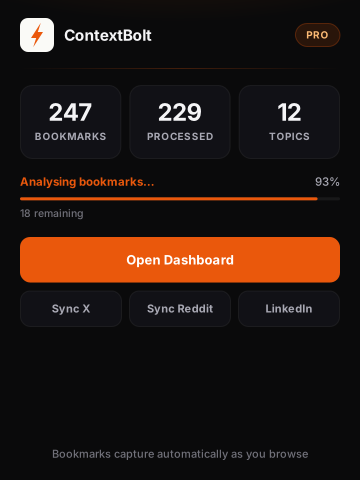
The ContextBolt popup, showing your collection size, how much of it the AI has tagged, and the topics it found.
The same library picks up your saves from X, Reddit and LinkedIn as you make them, so the thread you bookmarked and the article you saved for later sit in one place. On Pro, the MCP endpoint lets Claude or Cursor search everything you saved, with semantic search over the whole library, while you work.
- Keeps the article text, not just the link
- AI tags every save, nothing to file
- Ranked search on your device, as you type
- ContextBolt Reader on Basic and Pro
- X, Reddit and LinkedIn saves in the same library
- Pro connects your saves to Claude and Cursor over MCP
- Desktop Chrome, no phone app yet
- Reader shows the text, not the article’s images
- Basic is capped at 150 bookmarks; Pro removes the cap
Best for: people who save articles to use them for work, a project or a decision, and need them back months later.
Pricing: Basic is free and capped at 150 bookmarks. Pro is $6 a month and removes the cap: unlimited bookmarks, cloud sync and the MCP endpoint.
Verdict: the one to install if your read later list is really a list of things you will need. Basic is free, so save your next five articles into it and search for one next week.
I connect ContextBolt to Claude and Claude is able to conduct research through my curated list of bookmarks.
Rudy, Pro user
ContextBolt vs Instapaper, side by side.
| ContextBolt | Instapaper | |
|---|---|---|
| Getting organized | AI tags on arrival | Folders you make |
| Finding it again | Search over text and tags, free | Full-text search on Premium |
| X, Reddit and LinkedIn saves | Captured as you save them | Each link by hand |
| Inside Claude or Cursor | MCP endpoint on Pro | Copy and paste |
| Free plan | Free up to 150 bookmarks | Unlimited saves |
| On your phone | Desktop Chrome | iOS and Android apps |
What you gain is a library that finds the article for you. What you give up is the phone app and the unlimited free plan. The full ContextBolt vs Instapaper comparison goes row by row.
2. Chrome Reading List
Best built-in optionChrome has a read later list of its own, and you do not need to install anything. Open the three-dot menu, then Bookmarks and lists, then Reading list, then Add tab to reading list. Right-clicking a tab works too. The list opens in the side panel, and you can pin it to the toolbar.
It is a queue, not a library. On a computer each item is a URL, a title, a read flag and two timestamps. Google’s own help page sends you to Save page as if you want the page itself. There is no search box in the panel and no export button. If yours went missing, it almost certainly moved, and our guide to where the Chrome reading list went shows where, plus a small extension that exports it.
- Free and already installed
- Syncs to your Google Account
- Read and unread tracking
- Keeps the link, not the page, on a computer
- No search box and no export
- Has moved three times since 2021
Best for: a short queue of articles you will read this week.
Pricing: free.
Verdict: fine for tonight’s reading. It misses the article you want in six months, because it never kept it and cannot search it.
3. Instapaper
Best for reading on your phoneInstapaper has been the calm read later app since 2008. The Save to Instapaper extension sends an article over, and you read a clean, text-first version on the web, iPhone or Android. It is still the nicest way to sit down with a long piece.
The free plan takes unlimited articles with sync and folders. Premium adds full-text search, a permanent archive, the PDF reader, Kindle sending, text-to-speech and speed reading. So the search that finds an old article is the paid part. Leaving later is worth knowing about too: the export is a CSV of links, not the articles, which our Instapaper alternatives guide covers.
- The cleanest reading view here
- Unlimited free saves
- Phone apps and text-to-speech
- Full-text search needs Premium
- Folders you make by hand
- Articles only, not your social saves
Best for: people who read their saves, mostly on a phone.
Pricing: free, or $5.99 a month or $59.99 a year for Premium.
Verdict: the pick for reading. It misses the save you need for work, unless you pay for search and remember the words.
4. Raindrop.io
Best for a visual libraryRaindrop is a full bookmark manager with a good Chrome extension, and plenty of people use one collection as a read later list. Saves show as cards with covers, sorted into collections and tags, with apps on every platform.
The free plan is unlimited bookmarks, collections and highlights. Pro adds full-text search, a web archive of each page, the AI Assistant and suggestions, MCP access and reminders. On free, a Raindrop save is a link, so the page can break under it. Our Raindrop pricing guide has the full breakdown.
- Unlimited free bookmarks
- Visual cards and collections
- Cheap Pro with a page archive
- Filing is mostly up to you
- Full-text search and copies need Pro
- More of a library than a reading queue
Best for: people who like to browse a visual grid of everything they saved.
Pricing: free, or $3 a month or $28 a year for Pro.
Verdict: a strong library if you enjoy curating. It misses the save you never filed, and finding one by its contents needs Pro.
5. Readwise Reader
Best for heavy readers who highlightReadwise Reader is the most complete reading app on this list. The Chrome extension saves articles, and Reader also takes PDFs, EPUBs, newsletters, RSS and YouTube. You highlight as you read, and the Ghostreader AI can summarize, explain or translate a document.
It is built for people who read a lot and want to keep what they highlighted. Readwise now sells a Reader-only plan, so you no longer need the full Readwise subscription to get it. There is no free plan after the trial.
- Best highlighting and annotation here
- Takes PDFs, newsletters, RSS and video
- Full-text search and an MCP server
- No free plan after 30 days
- The priciest option here
- More app than a quick save needs
Best for: people who read daily and live in their highlights.
Pricing: Reader only is $8.99 a month or $95.88 a year. Full Readwise, with highlight sync from other apps, is $12.99 a month or $119.88 a year. Both start with a 30-day trial.
Verdict: worth it if reading is the job. It misses the saves you make on X, Reddit and LinkedIn, and it costs more than a saved-for-later list needs.
6. ReadLater
Best tiny store extensionReadLater is the plain store option. It is a small extension that stores links to read later, syncs them through your Chrome sign-in, and in its current version also lists every open tab across your windows so you can search and save them. Ctrl+Shift+Y saves the page you are on.
It is a nicer reading list than Chrome’s, and a good tab tidier. It still keeps links and titles, so it has the same gap as the built-in list when the page changes.
- Free and very light
- Keyboard shortcut to save
- Open-tab manager built in
- Keeps links, not pages
- Searches open tabs by title and URL only
- One developer, last updated August 2025
Best for: people who want a quick list and fewer open tabs.
Pricing: free to install.
Verdict: handy for this week’s tabs. It misses the article you come back for later, because it only ever kept the link.
Why most read later lists turn into a graveyard
Every read later tool sells the same picture. You save it now, and on Sunday you sit down with a coffee and read it. Some of that happens. Most of it does not.
What actually happens is that the list grows faster than you read it. After a few months it is two hundred titles deep and you stop opening it. Then one day you need that one article, and the list is no help, because a list of titles is only useful if you remember the title.
That is why we ranked on finding, not reading. A save that keeps the text and searches it still pays off when you never got round to reading it. A save that keeps a link only pays off if you read it soon, the page is still there, and you can find the line again. If you want the wider picture of how each method keeps a page, including files and PDFs, our guide to saving a web page so you can find it later walks through every option.
How to pick in ten seconds
Answer one question. When you come back for this article, what do you need?
- The article, found from a word you half remember: ContextBolt. It keeps the text and searches it, free up to 150 bookmarks.
- A quiet read on your phone tonight: Instapaper. The free plan is enough.
- A short queue and nothing to install: Chrome’s reading list.
- A visual library you curate: Raindrop.
- Highlights from everything you read: Readwise Reader.
- A quick list plus fewer open tabs: ReadLater.
If two of those fit, they can run side by side. Plenty of people read in Instapaper and keep the pages that matter in ContextBolt, because those are two different jobs.
What we would install
Install ContextBolt first. Save the next five articles you would have left in a tab, then search for one of them a week later using a single word from the middle of it. That test shows you more than any feature table, and Basic costs nothing.
If you also read a lot on your phone, add Instapaper’s free plan for the long pieces. Skip paying for a reading app until you know you read your saves, because most people find out they mostly needed to find them.
Start with ContextBolt for web pages, or see all ContextBolt plans.