To organize Chrome bookmarks, open the Bookmark Manager with Ctrl+Shift+O (Cmd+Option+B on a Mac), make a few folders, drag your bookmarks into them, then sort each folder with Sort by name. Google Chrome has no button that sorts bookmarks into topics for you, so the job is folders first, then order, then cleanup.
We ran every step below in Chrome 157 on a test profile holding 25 messy bookmarks, on November 15, 2026, and read Chrome’s saved bookmarks file after each one. Sort by name rewrote the order of one folder and left the folders inside it untouched. The side panel’s Sort by A to Z changed nothing on disk at all, and the bookmarks bar kept its old order.
- Open the Bookmark Manager with Ctrl+Shift+O, or Cmd+Option+B on a Mac. Folders sit on the left, the open folder’s bookmarks on the right.
- Make five to seven folders and drag bookmarks in. Ctrl+click picks several at once, and they drop at the end of the folder you drag them onto.
- Sort each folder with Sort by name, in the three-dot menu at the top right of the Bookmark Manager page. Folders go first, then A to Z, one folder at a time.
- The side panel’s A to Z only changes the panel. In our test the bookmarks bar and the saved file kept their old order.
- Too many to sort by hand? Chrome has no auto-organize. ContextBolt imports your Chrome bookmarks, groups them into topics and never changes Chrome’s own list. Basic is free up to 150 bookmarks.
Open Chrome’s Bookmark Manager
Every step in this guide happens on one page. Press Ctrl+Shift+O on Windows or Linux, or Cmd+Option+B on a Mac, as listed on Google’s Chrome shortcuts page. You can also type chrome://bookmarks into the address bar, or open Chrome’s three-dot menu, then Bookmarks and lists, then Open bookmarks manager.
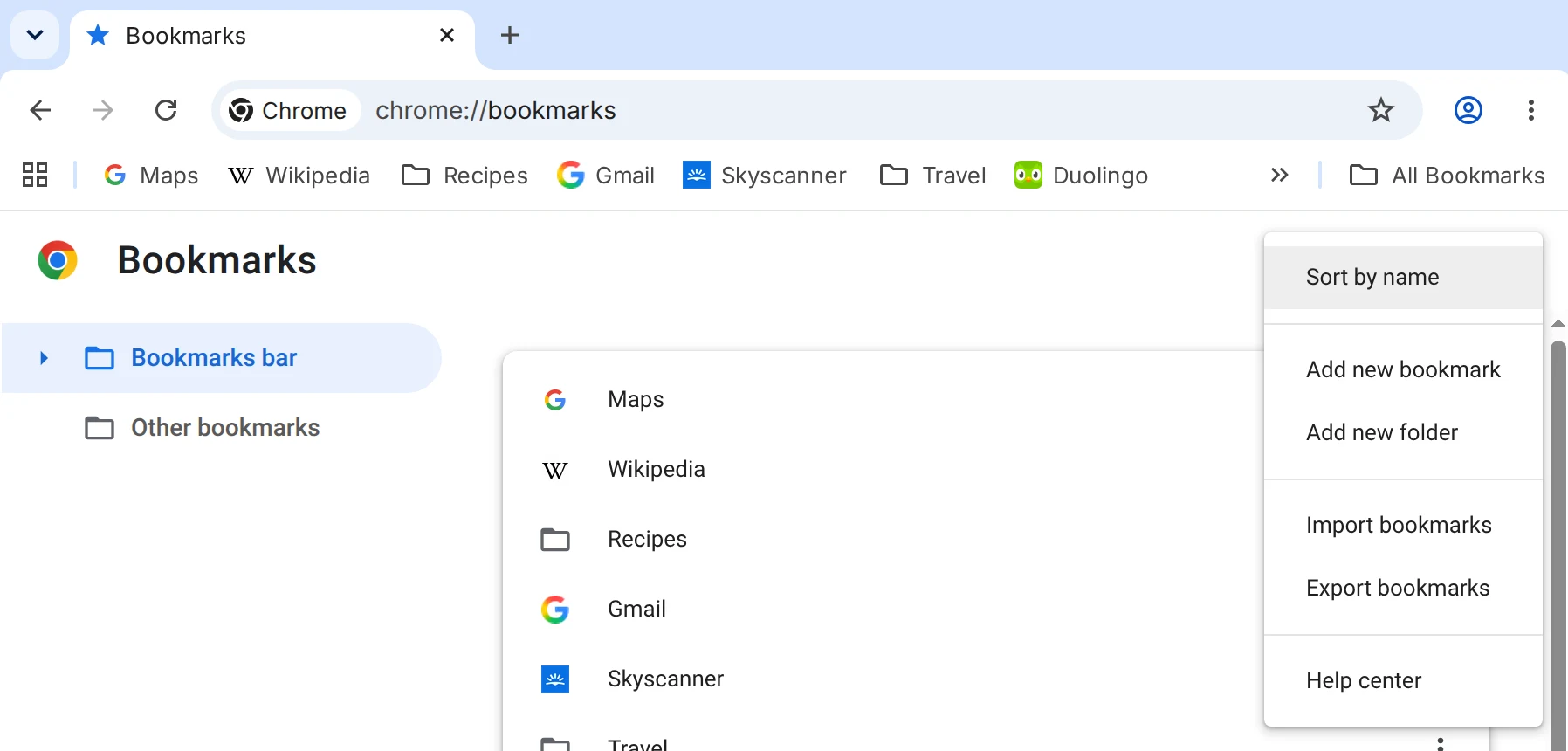
The page has two halves. On the left are your folders: Bookmarks bar, Other bookmarks and everything inside them. On the right is whatever sits in the folder you clicked. The page also has its own three-dot menu, at its top right under Chrome’s toolbar, and that menu holds the organizing tools.
In Chrome 157 it lists six items: Sort by name, Add new bookmark, Add new folder, Import bookmarks, Export bookmarks and Help center.
Before you move anything, choose Export bookmarks once. Chrome writes every bookmark to one HTML file, and if a cleanup goes wrong, that file still holds the list as it was. Our guide to exporting Chrome bookmarks covers where the file lands and the phone bookmarks it includes.
Plan your folders before you drag
A plan keeps the dragging short. Five to seven top-level folders cover most collections. Name each one after what you do with the link, so every bookmark has one obvious home:
- On the bar, no folder: mail, calendar and the tools you open every morning.
- Work: or one folder per client.
- Projects: one subfolder per live project, moved to Archive when it ends.
- Reading: articles you mean to come back to.
- Reference: docs, how-tos, recipes, anything you look something up in.
- Archive: finished work and old links you would rather keep than delete.
Stop at two levels. Each extra level is another click before you see a bookmark, and Chrome’s search finds a bookmark wherever it is filed. If folders have let you down before, we wrote about why bookmark folders stop working past a few hundred links.
Create folders and move bookmarks into them
- Click the parent folder in the left-hand list, for example Bookmarks bar or Other bookmarks.
- Open the page’s three dots and choose Add new folder. Give it a name and save it.
- Pick the bookmarks to move. Click one, then Ctrl+click the others (Cmd+click on a Mac). The top of the page switches to a count, such as 2 selected, with a Delete button beside it.
- Drag the selection onto a folder in the left-hand list. In our test, two bookmarks dragged onto Travel landed at the end of it, after the four bookmarks already there.
You can also build folders without the manager. On the bookmarks bar, right-click any bookmark and choose Add folder… to make one in place, then drag bar bookmarks into it.
The bookmarks side panel moves bookmarks in bulk. Open it from the three-dot menu, then Bookmarks and lists, then Show bookmarks in side panel (Google’s help pages still call this item Show all bookmarks). Click the pencil icon and each bookmark gets a checkbox. Tick the ones you want, click the folder icon at the bottom of the panel, and a Move to… window lets you pick a folder or make a New folder.
Sort Chrome bookmarks alphabetically
Open a folder in the Bookmark Manager, click the page’s three dots and choose Sort by name.
We ran it on our test profile’s bookmarks bar, then read Chrome’s saved file:
- Folders went first. Learning, Recipes and Travel moved to the front, then the eight bookmarks from Calendar to Wikipedia.
- The real order changed. The bookmarks bar at the top of the window reordered at the same moment, and Chrome’s saved
Bookmarksfile changed with it. - Subfolders stayed as they were. Travel still read Skyscanner, The Man in Seat 61, Lonely Planet, Rome2Rio. Open each folder and sort it on its own.
- It could be undone. A Folder sorted message came up with an Undo button, and Ctrl+Z restored the old order about ten seconds later, after the message had gone.
The side panel sort changes only what the panel shows
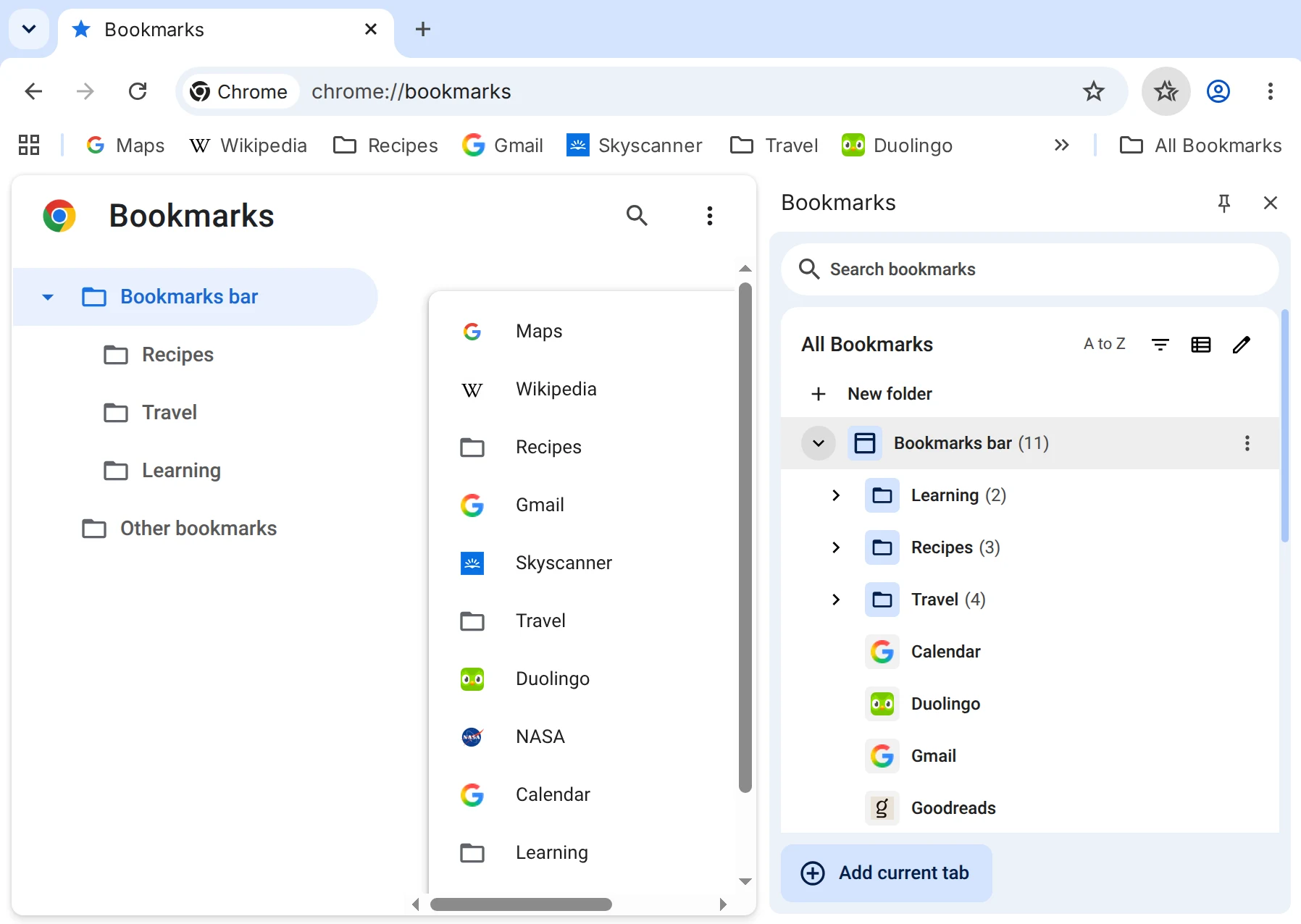
Chrome has a second set of sort options in the bookmarks side panel: Sort by newest, Sort by oldest, Sort by last opened, Sort by A to Z and Sort by Z to A. Google’s bookmarks help page lists them next to Sort by name and does not say whether either one changes the saved order.
So we tested it. We picked Sort by A to Z, waited for Chrome to save, and compared the bookmarks file before and after. The checksum was identical. The panel listed Learning, Recipes, Travel, Calendar, while the bar above it still started with Maps and Wikipedia.
| Option | Where to find it | Changes the real order? | Undo |
|---|---|---|---|
| Sort by name | Bookmark Manager, the page’s three dots | Yes, for the open folder | Undo button or Ctrl+Z |
| Side panel sorts | Side panel, the sort icon | No, only the panel’s list | Pick another sort |
| Drag, or Move to… | Manager, side panel or the bar | Yes, for what you move | Drag it back |
Use Sort by name to put the bar and your folders in order for good. Use the side panel sorts to look something up by date without moving anything. Sort by last opened brings the bookmarks you used recently to the top.
Find and delete duplicate bookmarks
Chrome has no duplicate finder, but its search covers one site at a time, because the Bookmark Manager matches a bookmark’s address as well as its title. We searched lonelyplanet as one word and both copies of Lonely Planet came up, though the title has a space in it.
- Click the search icon at the top of the Bookmark Manager and type part of the site’s address.
- Open each result’s three dots and choose Show in folder to see where that copy is filed.
- Keep the copy in the right folder and choose Delete on the others. To delete several at once, Ctrl+click them and use the Delete button at the top of the page.
Our delete showed ‘Lonely Planet’ deleted with an Undo button, and Ctrl+Z put the bookmark back in the same folder. Google’s help page warns, “After you delete a bookmark, you can’t get it back,” so treat Undo as a few seconds of grace and keep that export file.
To list every duplicate in one go, our guide to removing duplicate bookmarks in Chrome counts repeated addresses in the export file in about a minute.
Fit more on the bookmarks bar
The bar shows as many bookmarks as the window is wide and tucks the rest behind the » button near its right end, just before the All Bookmarks folder. Two edits fit more on it.
- Show icons only. Right-click a bar bookmark, choose Edit…, clear the Name box and click Save. In our test Duolingo shrank to its green icon, and NASA, which had been hidden behind the », moved onto the bar.
- Group weekly links in a bar folder. Right-click the bar, choose Add folder… and drag in the links you open once a week. A folder takes the space of one bookmark.
Renaming helps search as well. Chrome’s search reads the title and the address of each bookmark, and nothing from the page itself, so a bookmark titled “Home” or “Dashboard” is hard to find a year later. Give it a title in your own words when you save it. Our guide to Chrome bookmark search covers why it misses pages you know you saved.
If the bar disappears while you work, press Ctrl+Shift+B (Cmd+Shift+B on a Mac) to show it again.
Save new bookmarks straight into a folder
A tidy list stays tidy only if new bookmarks land in the right place. Press Ctrl+D (Cmd+D on a Mac), or click the star at the right of the address bar, and Chrome opens a Bookmark added box with a Name field and a Folder list.
Chrome fills in the folder for you, and it is not always the one you want. In our test it picked Travel, the folder we had last moved bookmarks into, for a page that had nothing to do with travel. The list offered Travel, Recipes and Learning, then Bookmarks bar and Other bookmarks, then Choose another folder… for the full tree.
- Press Ctrl+D on the page you want to keep.
- Shorten the Name to the words you would search for later.
- Pick the folder from the list, or choose Choose another folder… to file it deeper or make a new one.
- Click Done.
It adds a few seconds to each save and spares you the next round of dragging.
Import Chrome bookmarks into ContextBolt to sort them by topic
Folders work while you remember where you put things. Past a few hundred bookmarks, Sort by name puts them in order and still says nothing about what each page covers, and nothing in Chrome’s menus will group them for you.
ContextBolt is ours, so weigh the bias. It is a Chrome extension that keeps your saves in one library, and since version 0.1.45 (November 2026) it imports Chrome bookmarks. Open its dashboard, go to the Web tab, click Import Chrome bookmarks and allow access when Chrome asks. Each bookmark arrives with its title, address, folder name and the date you saved it in Chrome, then gets tagged and grouped into topics, which work like folders you never have to file into. New Chrome bookmarks save there on their own while it stays connected, and ContextBolt never changes Chrome’s bookmarks, so everything above keeps working.
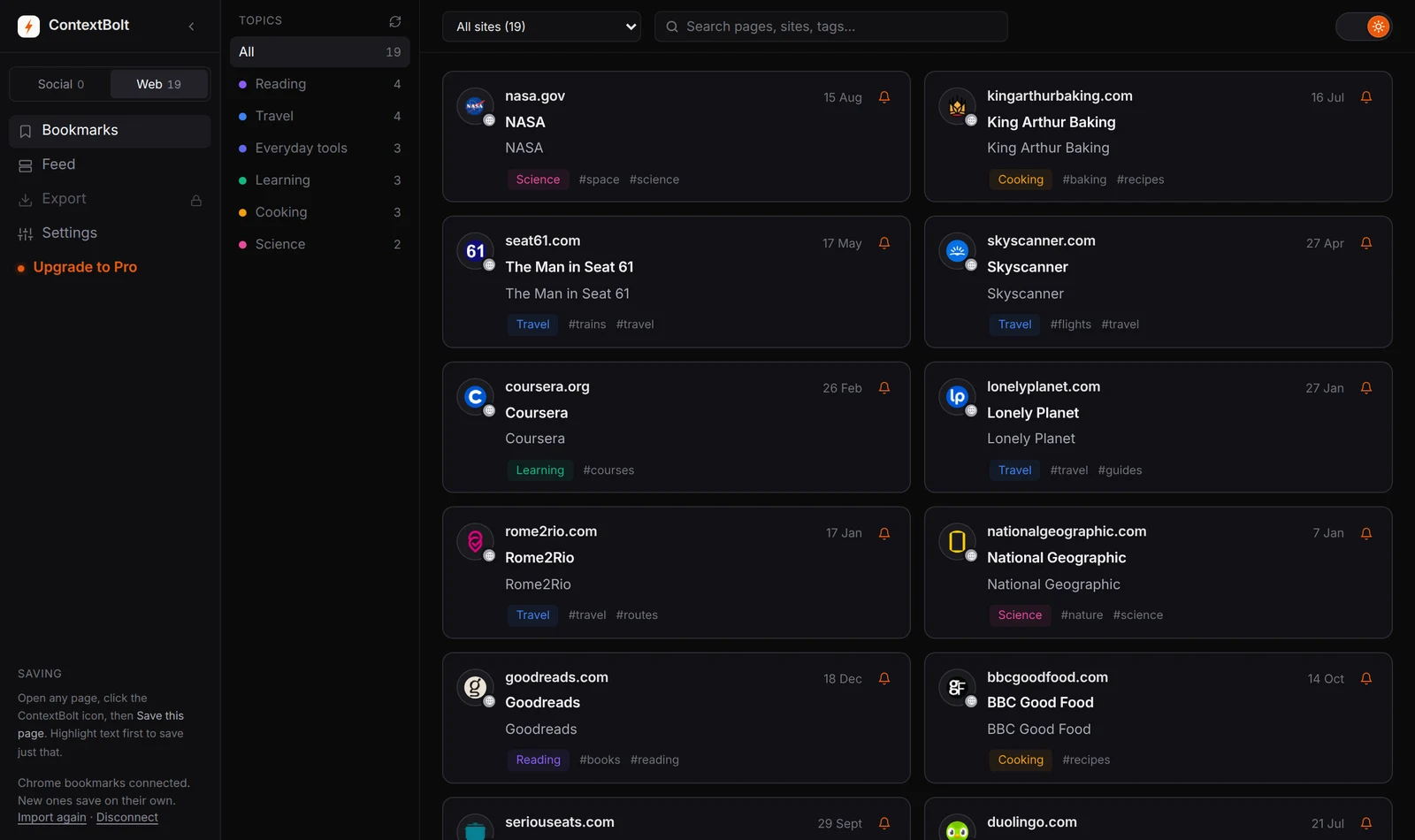
Chrome bookmarks imported into ContextBolt and grouped by topic. New Chrome bookmarks save here on their own.
A good first task: after the import, type the name of an old folder into the Web tab’s search box. Folder names are searchable, so a folder you made years ago and forgot comes back as a list.
Basic is free and capped at 150 bookmarks. Imported bookmarks keep Chrome’s dates, so if you import more than 150, the older ones stay hidden. Pro is $6 a month, removes the cap, and adds cloud sync and an MCP endpoint so Claude can search your library. An imported bookmark keeps its title and address. To make what a page said searchable too, open it and click Save this page in ContextBolt’s toolbar menu.