Google Search Console knows a lot about each page on your site. It just never puts it in one place. The numbers live in the Performance report, behind a filter. Whether the page is indexed lives in a different tool, URL Inspection. So checking one blog post means two tools, one pasted address and a handful of clicks, every time.
Say you published a post three months ago and want to know how it’s doing. You want four answers: how many clicks it gets, which searches bring them, whether that’s going up or down, and whether Google has the page indexed at all.
There are three ways to get them. Filter the Performance report, inspect the URL, or click a free Chrome extension that shows both on the page you’re reading. Below is each one, what it misses, and the two quirks that make one page’s data look wrong when it isn’t.
- The numbers: Performance report, + Add filter, Page, paste the address. The totals, chart and Queries tab now cover that page only.
- The index status: paste the same address into URL Inspection, the bar at the top of Search Console.
- Both in one click: Page Insights for Search Console, ContextBolt’s Chrome extension, shows them on the page you have open. It’s free, and it always will be.
- Expect gaps: a page’s queries never add up to its clicks, because Google leaves out rare searches.
- Where to act: queries at position 8 to 20, and queries on page one that get seen but rarely clicked.
Way 1: Filter the Performance report by page
This is the standard route, and the one Google documents.
- Open Search Console, pick the property, then Performance and Search results.
- Click + Add filter above the chart and choose Page.
- Paste the page’s full address and apply it.
The four boxes at the top (total clicks, total impressions, average CTR and average position) now cover only that page. So does the chart. The table underneath is the useful part: its Queries tab lists the searches the page showed up for, and Countries and Devices split the same numbers by where and how people searched.
One trap sits in step 3. The default match is URLs containing, which matches any address with your text in it. Filter on /blog/seo/ and you also get /blog/seo/tools/ and any page underneath it. For exactly one page, pick Custom (regex) and anchor the address at both ends:
^https://example\.com/blog/seo/$The ^ means “starts here” and the $ means “ends here”, so nothing longer sneaks in. The backslash before the dot makes it a plain dot.
Two more things worth doing while you’re there:
- Compare periods. Open the date filter and switch to Compare. Last 28 days against the 28 before shows you whether the page is growing or fading, query by query.
- Go back further. The report keeps 16 months. For a page that’s seasonal, compare against the same months last year rather than the month before.
Google’s own walkthrough of the report is on its Performance report help page, including what each metric means. Average position, for one, is “the average position of the topmost result from your site”, so a page at 4.6 sometimes shows at 2 and sometimes at 9.
Way 2: Inspect the URL for index status
The Performance report only shows pages that got impressions. A page with no data might be fine and unpopular, or it might not be on Google at all. URL Inspection tells you which.
Paste the address into the bar at the top of Search Console. The answer comes back in a few seconds:
- URL is on Google, or URL is not on Google, with Google’s reason if it isn’t.
- Last crawl, the date Googlebot last fetched the page.
- User-declared canonical and Google-selected canonical. If those two differ, Google is treating another address as the main version, and that other address gets the search data.
The reasons are the same labels you see in the Page Indexing report. We’ve written up the common ones: crawled, currently not indexed means Google read the page and passed on it, and excluded by noindex tag means something on your site told Google to stay out. If one of them reached you by email, the “new reason” email guide sorts them into the ones to fix and the ones to leave.
Test live URL fetches the page as it is right now, rather than the copy Google stored. Use it after a fix, then Request indexing to ask for a recrawl. Google’s URL Inspection help page explains what each field means.
Way 3: One click with a free Chrome extension
Ways 1 and 2 work, but they’re a chore to repeat. You’re on the page already. You want its numbers without opening another tab, finding the property and pasting the address twice.
That’s why we built Page Insights for Search Console. Open any page of your site, click its icon, and it shows that page’s data from your own Search Console:
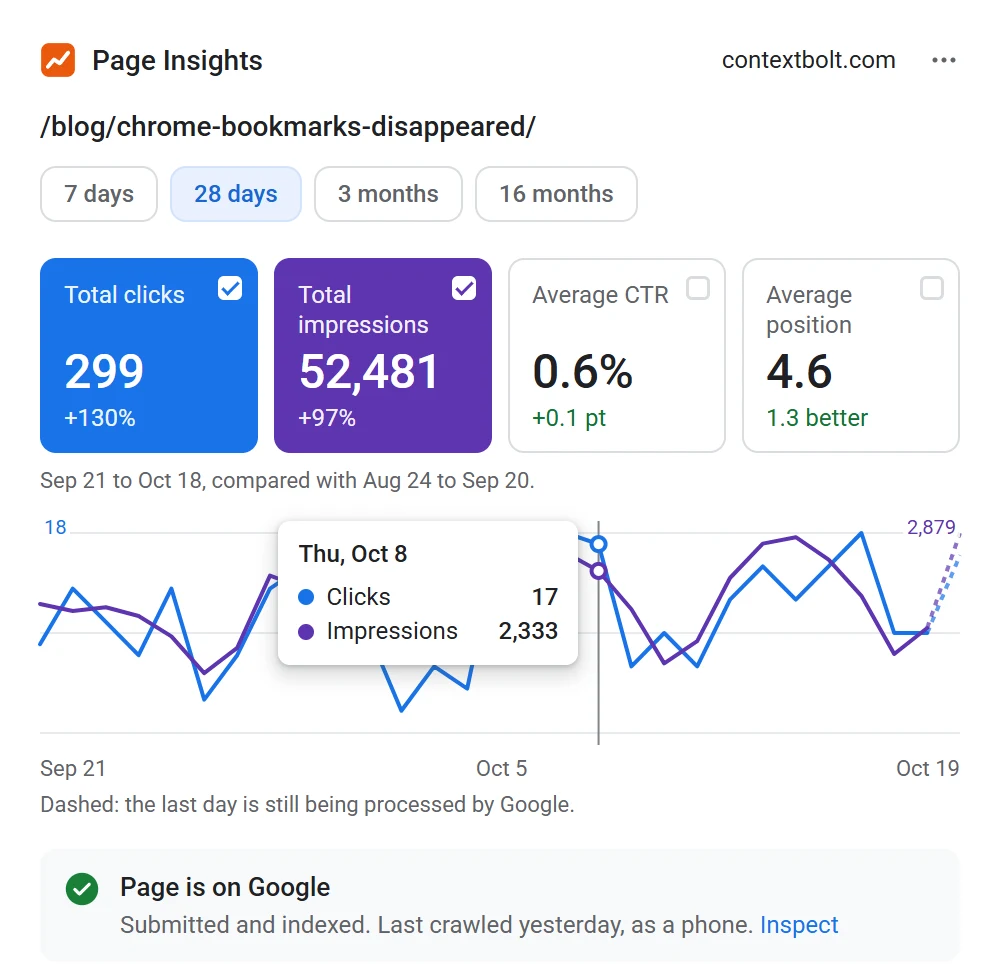
- The four boxes from Search Console, with the change against the period before. Pick 7 days, 28 days, 3 months or 16 months (16 months is all Google keeps, so that range has nothing to compare against).
- A line chart of each day. Click a box to put its line on the chart, and hover for any day.
- Queries, countries and devices, sortable by clicks, impressions, CTR or position.
- Index status, straight from URL Inspection: on Google or not, the reason, the last crawl, and the main address if Google picked a different one.
- Worth a look, a short list of plain facts: queries close to page one, queries seen but rarely clicked, the biggest changes in clicks, and your other pages that show up for the same searches.
It’s free, and it always will be. There’s no paid version inside it, no trial that runs out, no card and no account. You sign in with Google once, with whichever account has your sites.
It’s also private by design. It asks Google for read-only access, so it can’t change anything in your Search Console. Your browser asks Google and Google answers your browser, so your numbers never reach us. It reads the address of the tab you’re on when you click its icon, and nothing on the page itself.
It works in Chrome and in Microsoft Edge. It only works on sites in your own Search Console, and only one page at a time. For the whole site, the Performance report is still the place.
Why a page’s queries never add up to its clicks
Add up the clicks in a page’s Queries tab and you’ll land short of the total in the box above it. Nothing is broken.
Google leaves out queries that very few people searched, to protect their privacy. The clicks still count in the page’s total, but the searches behind them are never listed. Google’s help on filtering says it plainly: “Filtering your data by query or URL can affect the report totals due to data truncation and the omission of anonymized queries.”
On a busy page the gap is small. On a page with a long tail of rare searches it can be most of the traffic. Page Insights says how much of the total its listed queries cover, so you know how much you’re looking at.
Why the newest days look low
The last day or two on the chart almost always dip. That isn’t a drop. Google’s help page says “the newest data can be preliminary, meaning it’s still being collected and might change in the next few hours.”
So don’t compare a period that ends today with one that ended a month ago. You’ll see a fall that isn’t there. Page Insights draws the days Google is still processing as a dashed line, and its totals and changes compare finished days only.
The same patience applies to a page you edited yesterday. Google has to recrawl it before anything moves, so give a change two to four weeks before you judge it.
Jump links show up as their own addresses
Sometimes Google shows a link straight to a part of your page, an address ending in # and the name of the section. Search Console lists those as their own addresses in the Pages tab, usually with impressions and few or no clicks.
They’re worth a look rather than a worry. They tell you which sections of a long post Google thinks answer a search on their own. If one section keeps showing up, that’s a sign it could be a post of its own, or that it deserves a clearer heading. Page Insights lists them under links to sections of this page, kept apart from the page’s own numbers.
When a page shows no data at all
An empty report for one page has four usual causes, and each needs a different fix.
The page is new. Google has to crawl it, index it and show it in results before there’s anything to count. A post published this week may have nothing yet. Inspect the URL to see whether Google has found it.
The page isn’t indexed. If URL Inspection says it isn’t on Google, the Performance report has nothing to show. Fix the reason Google gives first, then request indexing.
Google picked a different address. When the Google-selected canonical is another URL, the clicks and impressions are filed under that one. Filter on the other address and the data is there.
You’re in the wrong property. A URL-prefix property only covers addresses that start with it, so https://www.example.com/ doesn’t cover https://example.com/. A domain property covers every version of the site. Page Insights picks the property that covers the page for you, and says so when none of yours does.
For a page that should be indexed and isn’t, our free Google index checker fetches it and shows whether anything on the page is stopping Google, and which Search Console status that causes.
What to do with one page’s numbers
Numbers are only useful if they change what you do next. These are the five patterns that pay most often.
Queries at position 8 to 20. The page is close to page one, or just on it. A clearer heading, a section that answers the query directly, or a few internal links from your stronger pages can move it. Our guide to striking distance keywords covers how to pick which ones to push.
Seen on page one, rarely clicked. The page ranks, people see it, and they choose something else. That’s a title and description problem, not a ranking one. Rewrite the snippet so it answers the search in the first few words.
A big drop in clicks. Check the index status first. A page that fell out of the index, or had its main address swapped, explains most sudden drops. If it’s still indexed, look at who sits above it now.
A query climbing fast. If one search keeps gaining clicks, Google is testing the page on it. Make sure the page answers it near the top, and give it a heading of its own if it has none.
Another of your pages showing up for the same searches. Two pages splitting one query often both rank worse than one would. Our guide to keyword cannibalization shows how to pick the winner.
What Search Console can’t tell you about a page
Search Console only knows about your own site. It shows the searches you already appear for, and nothing about the pages beating you.
So it can’t tell you who ranks above you for a query, or which sites link to them. It can’t suggest keywords you don’t rank for yet. And it can’t tell you whether ChatGPT, Gemini, Claude or Perplexity mention your site when someone asks.
That’s what ContextBolt SEO is for. Your AI agent pulls live keyword, competitor, backlink and AI answer data, and reads your Search Console alongside it, and every result saves to your SEO Dashboard. If you’d rather ask questions about every page at once than check one at a time, connect Search Console to your AI agent. ContextBolt SEO has a 7-day free trial.
For one page at a time, on the page itself, Page Insights stays free.