You want the bottom of the Codex CLI to show something useful while you work: how much of your five-hour window is left, how full the context is, which branch you’re on. That line is the Codex statusline, and you set it by typing /statusline in a running session, ticking items with Space and pressing Enter.
Codex 0.171.0, released November 20, 2026, added a second way in: a custom status line drawn by a small MCP server, still behind an experimental switch. We installed 0.171.0 on November 22, tried the picker, the config file and the one-session command in a real session, and took the full list of 33 items from Codex’s own source for that release.
ContextBolt makes Context Board, whose AI usage widget shows the same Codex limits with their reset times, so weigh the bias.
- Set it: type
/statusline, tick items with Space, move them with the left and right arrows, then press Enter. Codex saves the list totui.status_linein~/.codex/config.toml. Escape discards it. - Defaults: with nothing set, the footer shows
model-with-reasoning,current-dirandthread-name. - For your limits: add
five-hour-limit,weekly-limitandcontext-remaining. They show the percentage left, not when it resets. - Custom line, new in 0.171.0: tick Custom status line in
/experimental, restart Codex, then choose Create a custom status line in/statusline. - Both agents at once: a status line covers one Codex session. Context Board shows Codex and Claude Code limits, with reset times, on one screen.
How to set up the Codex statusline
- Open the picker. In a running Codex CLI session, type
/statuslineand press Enter. - Tick what you want. Move with the up and down arrows and press Space to tick or untick an item. Start typing to filter the list.
- Put them in order. Press the left or right arrow to move the highlighted item along the line.
- Check the preview. The line under the list shows your footer as it will look.
- Save. Press Enter. Escape closes the picker and keeps your old line.
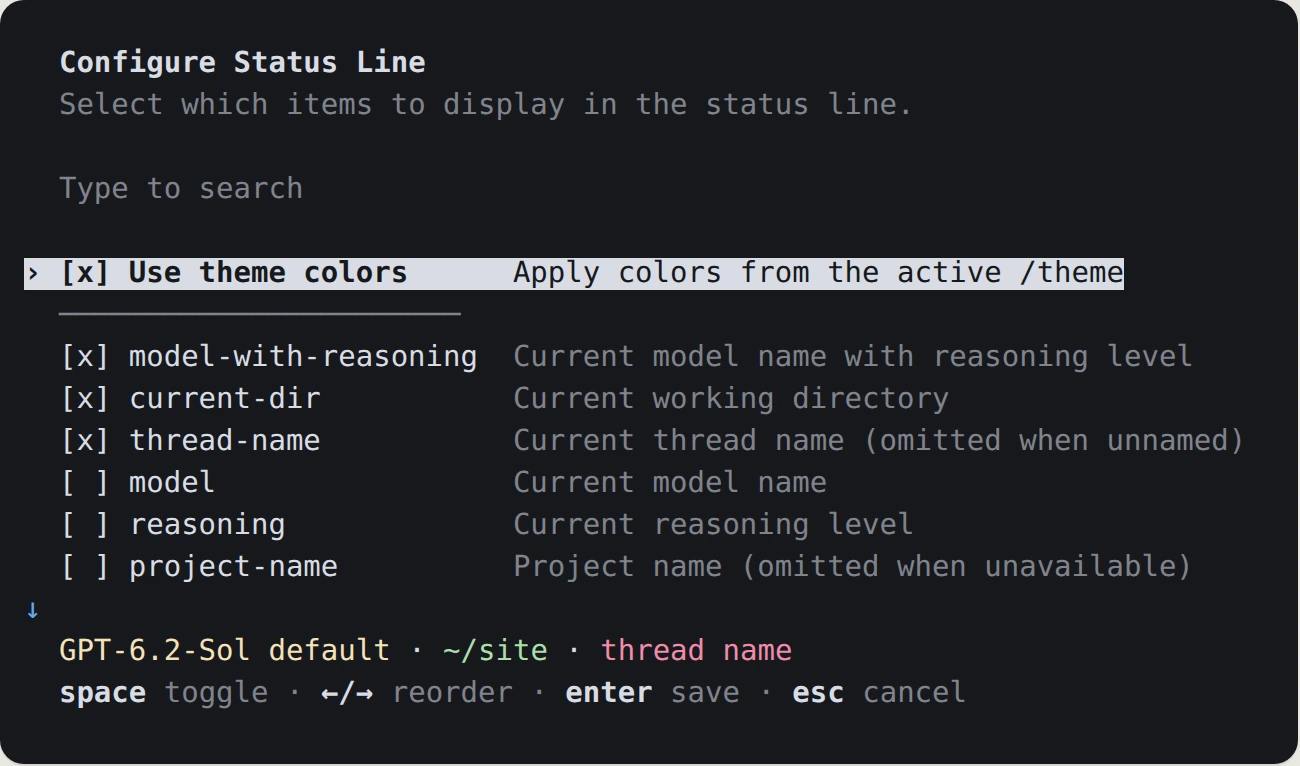
/statusline picker in Codex CLI 0.171.0, captured from a real session on November 22, 2026. The three ticked items are the defaults.The defaults come from Codex’s config source: with no tui.status_line set, the footer shows model-with-reasoning, current-dir and thread-name. The thread name only appears once you name a thread. Use theme colors, ticked by default, colors each item from your /theme.
Every Codex statusline item (33 in 0.171.0)
These are the 33 items in the status line source for Codex 0.171.0, grouped by what they’re for. The descriptions follow Codex’s own picker text. Most items stay hidden while Codex has no value for them, so a git item never shows outside a repository.
| Item | What it shows |
|---|---|
| Limits and context | |
five-hour-limit | What’s left of your five-hour usage window, as a percentage |
weekly-limit | What’s left of your weekly usage limit |
context-remaining | Percentage of the context window left |
context-used | Percentage of the context window used. The old name context-usage still works |
context-window-size | The context window in tokens |
used-tokens | Total tokens used this session, hidden at zero |
total-input-tokens | Input tokens used this session |
total-output-tokens | Output tokens used this session |
thread-credits | Estimated credits for this thread, Enterprise workspaces only |
estimated-thread-cost | Estimated cost of this thread in USD, Enterprise workspaces only |
| Model | |
model | The model name |
model-with-reasoning | The model name with its reasoning level |
reasoning | The reasoning level on its own |
fast-mode | The processing tier the model is running on |
provider | The model provider for this thread |
profile | The config profile you started Codex with, hidden when there isn’t one |
| Where you are | |
current-dir | The working directory |
project-name | The project name |
hostname | The machine Codex runs on |
| Git | |
git-branch | The current branch |
pull-request-number | The open pull request for this branch |
branch-changes | Committed changes against the default branch |
| Session | |
run-state | Ready, Working or Thinking |
approval-mode | The command approval mode |
permissions | The permission profile or sandbox mode |
task-progress | The latest progress on Codex’s task checklist |
thread-name | The thread’s name, hidden until you name it |
thread-title | The thread’s title, or its ID when it has no name |
thread-id | The thread’s full ID, once the thread starts |
raw-output | Whether raw scrollback mode is on |
daybreak | Whether Daybreak is on for this thread |
workspace-headline | The workspace notification headline, Enterprise workspaces only |
codex-version | The Codex version you’re running |
Show your usage limits in the status line
Tick five-hour-limit, weekly-limit and context-remaining. In our session on November 22, with git-branch on the end, the footer read:
GPT-6.2-Sol default · Context 100% left · 5h 100% left · weekly 99% left · mainThe limit items filled in as soon as the session opened, before we sent a message. Both show what’s left, as a percentage. Neither says when the window resets. For that, type /status or open Usage in your ChatGPT settings, as our guide to checking Codex usage shows, and Codex limit reset explains why the weekly time can move.
When Codex has no figure for one of them, it leaves the item out rather than showing zero. How big each window is depends on your plan, as Codex usage limits lays out.
Set it in config.toml, or for one session
The picker writes to your config file. You can write it yourself instead:
[tui]
status_line = ["model-with-reasoning", "context-remaining", "five-hour-limit", "weekly-limit", "git-branch"]
status_line_use_colors = true
The order of the list is the order on screen. A project can carry its own line in .codex/config.toml; OpenAI’s config basics say Codex loads a project’s .codex/ layer only once you trust the project.
A typo doesn’t break anything. We put five-hour-limt in the list: Codex dropped it, drew the rest, and logged “Ignored invalid status line item” in the warnings you open with F2. If an item never appears, look there first.
For this session only, list the items after the command, per OpenAI’s slash command docs:
/statusline model-with-reasoning context-remaining five-hour-limit weekly-limit git-branchThat changes the footer at once and leaves config.toml alone. A misspelled item gets “Unknown status-line item” and the old line stays. /statusline --clear hides the line for the session. When we cleared it, the footer fell back to a plain “100% context left” on the right.
Custom status lines in Codex 0.171.0
Until November 20, the status line could only show Codex’s own items. A GitHub request for a custom one, opened in April, gathered 57 comments. OpenAI closed it on November 21, pointing to Codex CLI 0.171.0.
- Turn it on. Type
/experimental, tick Custom status line, press Enter and restart Codex. The menu itself says “Restart the TUI, then use /statusline.” - Open the picker. Type
/statusline. Two new rows sit at the top. - Pick a route. Create a custom status line: describe what you want, and Codex helps build it. Choose a status line provider: select one you have installed. With none installed, the list holds just Default status line.
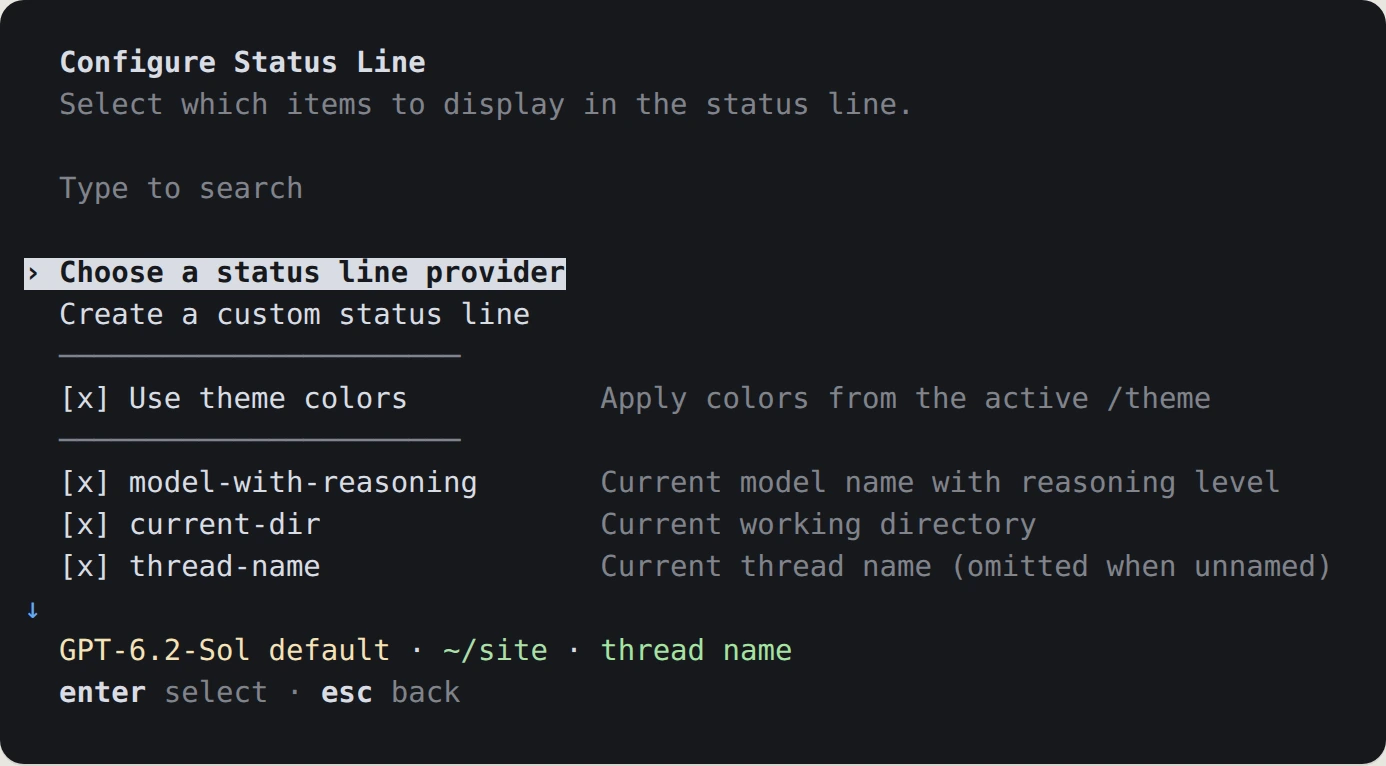
A provider is a small MCP server that runs on your computer. OpenAI’s provider guide registers one like this:
codex mcp add my-statusline -- python3 -u /absolute/path/to/statusline.py- What it gets: a snapshot of the thread on screen, with the model, the working directory and the usage data Codex has.
- What it returns: plain text, or a small tree of rows and colored items.
- How often: each read has one second to finish, and Codex reads again one second after each success. An error or a timeout stops it until you pick the provider again in
/statusline. F2 shows the failed attempt. - Your old script: OpenAI says an existing status line script can be wrapped in a provider, and ships a Python starter and TypeScript types for the input and output.
We stopped short of building a provider, so the steps above are OpenAI’s. It’s an experiment, and the switch and the picker may change.
Codex statusline vs Claude Code’s
If you came from Claude Code, the two work differently. Claude Code runs any script you point it at. Codex picks from its own items, or, with the new switch, asks an MCP server. The Claude Code column follows Anthropic’s status line docs.
| Codex CLI 0.171.0 | Claude Code | |
|---|---|---|
| Set it up | /statusline, then tick items | /statusline plus a description; it writes a script for you |
| Saved in | tui.status_line in config.toml | statusLine in settings.json, pointing at a command |
| What it can show | 33 built-in items, or anything a provider returns (experimental) | Anything your script prints from the JSON it gets |
| Usage limits | Five-hour and weekly, as percentage left | Five-hour and seven-day, as percentage used, on Pro, Max and Ultra, after the first reply |
| Reset times | Not in the built-in items | In the JSON, for your script to show |
| Refresh | A provider is read again one second after each read | On each update, plus a timer you can set from one second |
For the Claude Code side of the same job, see how to check Claude Code usage.
Keep both agents’ limits in sight
A status line lives in one terminal and shows one session. Run Codex in two windows and Claude Code in a third, and you’re reading three footers, none of which says when a window resets.
Context Board’s AI usage widget puts both plans on one screen: rings for Codex and Claude Code that empty as you work, one for the five-hour window and one for the week, each with when it resets, such as “resets in 1h 42m.” Beside it, Agent activity lists every Codex and Claude Code session on your computer with its project, and whether it’s working, done or waiting for you.
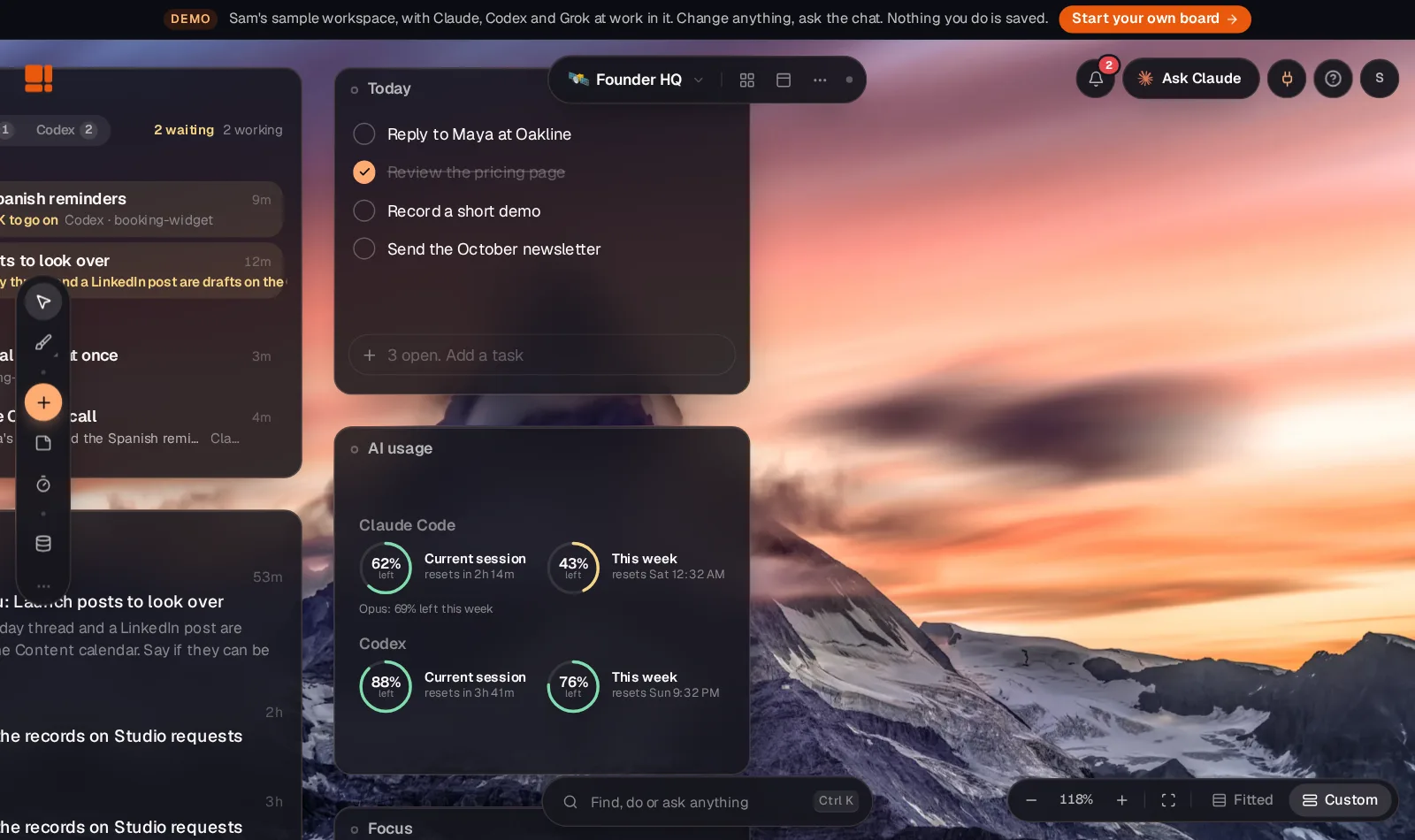
The AI usage widget on Context Board’s public demo, zoomed in. Every number is sample data.
The numbers come from the agents themselves, through a small program you set up once with one line from Connect. Link a second computer with the same line and its sessions join the board. Only names, states and percentages leave your computer, never what was said in a session.
Put your Codex limits on a board: free for 3 days, then $12 a month for all of Context Board.