You would think exporting your own bookmarks would be straightforward. You saved them. They are yours. Surely there is a download button somewhere.
There is not. X/Twitter does not offer any way to export bookmarks. Not through the app. Not through Settings. Not even through the official data archive download that gives you your tweets, DMs, and account history. Bookmarks are simply excluded.
This is not a bug. It is a deliberate product decision. X wants your bookmarks to live inside X.
If you want them out, you need a workaround. Here are all the ones that actually work in 2026, with honest pros and cons for each.
Want bookmarks you can actually search, not a CSV you open once and forget? ContextBolt is the best Chrome extension to export X (Twitter) bookmarks. It imports the bookmarks X still shows you, copies each new save the moment you make it so the 800 cap stops applying to new saves, and turns them into a library you search by topic in a keystroke, or query by meaning straight from Claude on Pro. Need a plain file? Pro exports CSV, JSON or XLSX in one click.
Add ContextBolt to Chrome, freeWant the raw file instead? All four methods are compared below, with honest pros and cons.
- X/Twitter has no built-in export for bookmarks. Your data archive doesn’t include them.
- Free Chrome extension like X Bookmarks Exporter, one-click CSV/JSON.
- Third-party tool like Dewey or Circleboom.
- Open-source userscript like twitter-web-exporter.
- ContextBolt: imports your visible bookmarks and copies each new save as you make it, no separate export step.
- Each method has trade-offs on ease, format, and limits.
Why people need to export bookmarks
Before the how, a quick note on why this matters.
Most people who search for “export twitter bookmarks” are in one of three situations:
Backup anxiety: You have hundreds of saved tweets and you are worried about losing them. Accounts get suspended. Tweets get deleted. X could change the bookmarks feature tomorrow. A local copy feels like insurance. This is especially true for saved threads, where a single deletion breaks the whole chain.
Switching tools: You want to move your bookmarks into Notion, a spreadsheet, or a bookmark manager. For a spreadsheet or Notion, that means getting the data out of X first. A manager that captures from X directly, like ContextBolt, skips the file.
Leaving the platform: You want a record of everything you found valuable before you close your account or stop using X.
All three are reasonable. The right export method depends on which one you are.
Method 1: Chrome extension (easiest)
The fastest way to get your bookmarks out of X is a browser extension. Several exist. If a plain file is all you want, the free single-purpose one is X Bookmarks Exporter.
How it works
- Install the extension from the Chrome Web Store.
- Go to your X bookmarks page (x.com/i/bookmarks).
- Click the extension icon.
- Choose your format: CSV, JSON, or XLSX.
- Click export. The file downloads to your computer.
The export includes tweet text, author handle, timestamp, and engagement metrics. Some extensions also download attached images and videos.
- Free and fast. Under two minutes for most collections.
- No account credentials needed. Reads from the page you are already logged into.
- Data stays local. Processing happens in your browser, nothing sent to external servers.
- Multiple formats (CSV, JSON, XLSX).
- You need to scroll through all your bookmarks first so the extension can capture them.
- Large collections (1,000+) can be slow to load on X’s bookmarks page.
- Extensions can break when X updates their frontend code.
- Quality varies. Multiple extensions have near-identical names. Check reviews carefully.
Best for: People who want a quick, one-time backup in a standard file format.
Method 2: Open-source userscript (most powerful)
For technical users, twitter-web-exporter is the strongest option. It is an open-source userscript that runs inside your browser via a script manager like Tampermonkey or Violentmonkey.
How it works
- Install Tampermonkey (or any userscript manager) in your browser.
- Install the twitter-web-exporter script from GitHub.
- Open your X bookmarks page. A floating panel appears.
- The script captures bookmarks as you scroll. The panel shows a running count.
- Click the arrow button to preview your data in a table view.
- Select items and export to JSON, CSV, or HTML.
Why this matters for large collections
Developers report the X API returns only about the 800 most recent bookmarks. Most Chrome extensions hit this same wall because they rely on the same underlying API calls.
twitter-web-exporter bypasses this. It reads directly from the web page as you scroll, capturing everything the browser renders. If you have 3,000 bookmarks and the patience to scroll through them, it will capture all 3,000.
It also supports bulk media download. Images and videos are saved at their original resolution in a zip archive.
- No 800-bookmark API limit. Captures everything on the page.
- Open source. You can inspect the code and verify it does not send data anywhere.
- Exports tweets, bookmarks, lists, followers, and more from the same tool.
- Bulk media download at original resolution.
- Requires installing a userscript manager first.
- You need to manually scroll through your entire bookmarks page.
- Slightly more technical setup than a Chrome extension.
- Can break when X updates their web app.
Best for: Developers, researchers, and anyone with a large collection who needs everything exported without limits.
Method 3: Third-party bookmark managers
Several bookmark management tools include export as a built-in feature. The difference is that they capture your bookmarks into their system first, then let you export from there.
Dewey
Dewey captures your X bookmarks into a managed dashboard. From there, you can export your entire library as CSV, searchable PDF, or Google Sheet. It also has a Notion integration that syncs bookmarks automatically.
Dewey’s export is well finished. The CSV includes full tweet text, author, date, tags, and any notes you have added. The PDF export is formatted and searchable, which is useful for archiving.
Dewey has a free plan, then Pro at $10/month or $90 a year, with a $225 lifetime option and a separate $50 Export Pass. Checked September 10, 2026. See our ContextBolt vs Dewey comparison for a detailed breakdown of how the two tools differ.
Circleboom
Circleboom is a broader Twitter management suite that includes bookmark export. You can filter bookmarks, select individually or in bulk, and download as CSV. It also supports bulk delete if you want to clean up after exporting.
Circleboom is more expensive than dedicated bookmark tools because it bundles many features beyond bookmarks. If you only care about export, a Chrome extension is simpler and free.
- Polished export with multiple format options.
- Additional features: tagging, folders, search, Notion sync (Dewey).
- Some tools preserve deleted tweets.
- Ongoing sync means you can export again later without re-importing.
- Paid. You need a subscription to access export features.
- Your data goes through a third-party server.
- Overkill if you just want a one-time CSV download.
Best for: People who want Notion sync or a PDF export bundled with their X bookmarks, or Circleboom’s bulk delete.
Method 4: The X data archive (does not work)
This deserves its own section because it is the first thing most people try.
X lets you download an archive of your data from Settings > Your Account > Download an archive of your data. The archive includes your tweets, DMs, followers, blocked accounts, and more. It comes in HTML and JSON formats.
Bookmarks are not included: This is confirmed in X’s developer community forums and has been a known gap for years. Developers have requested this feature repeatedly. As of April 2026, nothing has changed.
If you have already downloaded your archive hoping to find bookmarks in it, they are not there. You need one of the other methods listed above.
The same gap explains why there is no restore either. No archive means no backup, so when a list goes empty there is nothing on X’s side to roll back to, and the fix is diagnosis rather than recovery. X bookmarks gone covers what to check.
Twitter bookmark export methods: comparison table
| Method | Cost | Formats | Bookmark limit | Media download | Difficulty |
|---|---|---|---|---|---|
| ContextBolt | Free, Pro $6/mo | Searchable library, CSV, JSON and XLSX export on Pro | Basic 150 bookmarks, Pro unlimited | Post text and links | Easy |
| Chrome extension | Free | CSV, JSON, XLSX | ~800 (API limit) | Some extensions | Easy |
| twitter-web-exporter | Free | CSV, JSON, HTML | No limit | Yes (zip) | Moderate |
| Dewey | Free, then $10/mo | CSV, PDF, Google Sheets | No limit | Yes | Easy |
| Circleboom | Paid | CSV | No limit | Yes | Easy |
| X data archive | Free | HTML, JSON | N/A | N/A | N/A (does not include bookmarks) |
The real question after exporting Twitter bookmarks: what do you do with them?
Here is the thing nobody talks about in “how to export” guides. You get a CSV file. Then what?
Most people download the file, feel relieved, and never open it again. A CSV of 500 tweets is not useful. You cannot search it meaningfully. You cannot browse by topic. You definitely cannot ask it questions.
This is where the export framing misses the point. The real problem is not getting data out of X. The real problem is that your bookmarks have no usable interface.
If what you actually want is to find things you saved, a flat file is the wrong solution. You need search. Specifically, you need search that finds the topic, not just the exact words. For the method-by-method breakdown of every way to search saved tweets, see our twitter bookmark search guide.
ContextBolt takes a different approach to this problem. Instead of exporting your bookmarks to a file, it captures them into a searchable knowledge base with AI-powered topic clustering and instant, typo-tolerant search across those tags and the full text. The AI tags carry the topic, so a tweet about “fundraising” turns up even if it never used the word. Semantic search, matching by meaning rather than by tag or word, comes with the Pro MCP endpoint.
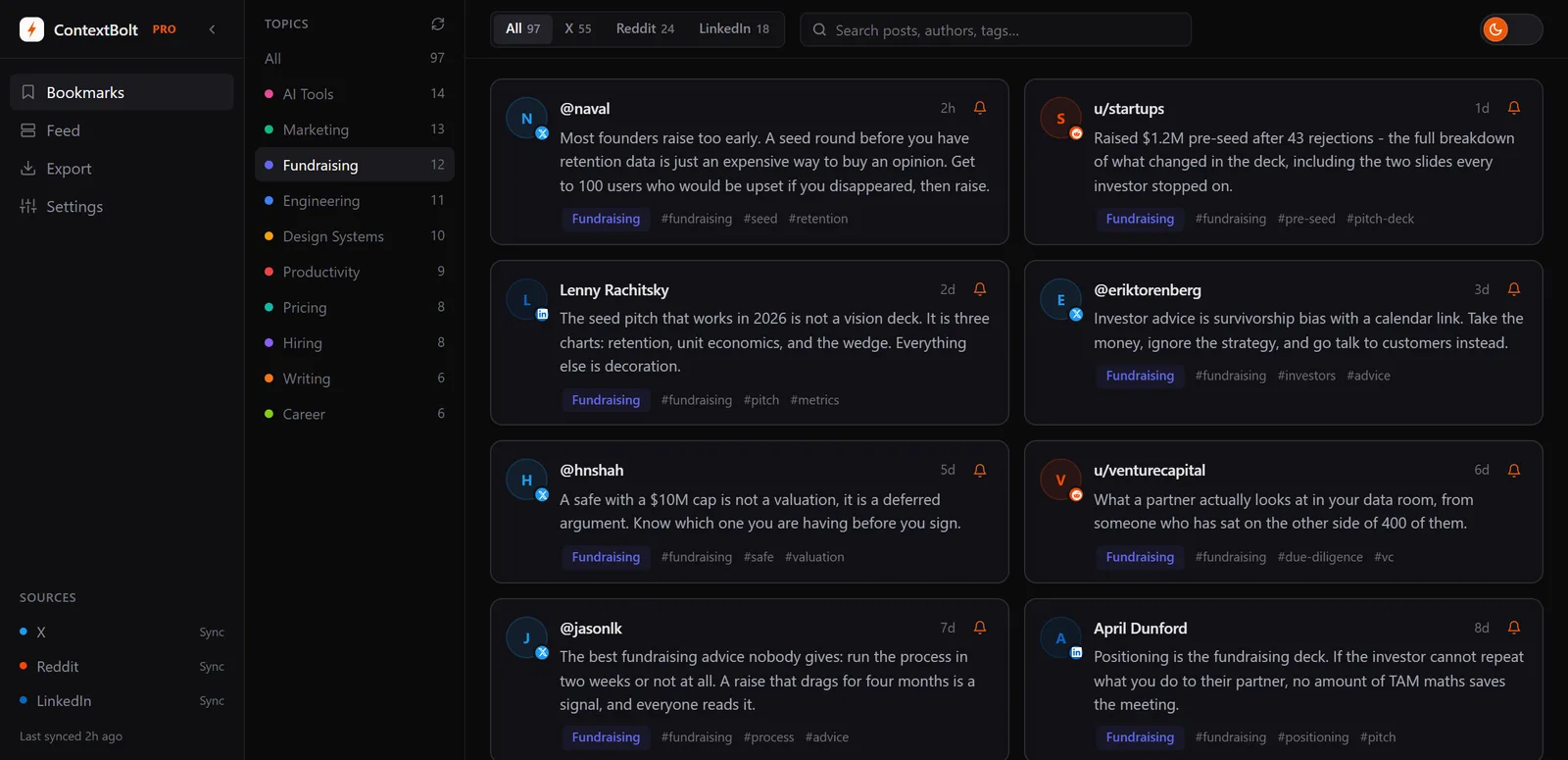
Instead of a flat CSV, ContextBolt groups your bookmarks into searchable topics across all three platforms. Pro exports the file when you want it.
Basic is free and capped at 150 bookmarks, with full AI tagging and search. No export step needed because your bookmarks are already in a system you can actually use.
That said, I understand why people want a file. Portability matters. Data ownership matters. ContextBolt Pro exports CSV, JSON and XLSX too, so you are not choosing between the library and the file. But if you are exporting because X’s bookmarks page is useless for finding things, consider whether search is the thing you actually need, not export.
Which Twitter bookmark export method should you use?
If you want a quick backup and you have fewer than 800 bookmarks: Use the X Bookmarks Exporter Chrome extension. It takes two minutes and costs nothing.
If you have a large collection (1,000+) and want everything: Use twitter-web-exporter. Of the file exporters, it is the free one that bypasses the 800-bookmark API limit.
If you want polished export formats, PDF and Google Sheets included: Dewey. The export is clean, the Notion integration is useful, and you get folder organization on top.
If you want to actually find and use your bookmarks, not just back them up: Use ContextBolt. It solves the underlying problem that makes people want to export in the first place, and Basic is free with no account and no card. If you use Claude, Cursor, or Devin Desktop (formerly Windsurf), the MCP endpoint on Pro makes your entire collection searchable from inside your AI tools.
Export is a workaround for a product that does not respect your data. The best long-term solution is a tool that makes your bookmarks useful where they are.